
For Singapore users, please refer to this article.
Note: As of December 16, 2022, Payoneer has ceased services in Russia. New registrations from Russia were closed on December 1, 2022, and the last withdrawal date was also December 1, 2022.
Note: As of May 19, 2025 all new approved registrant will receive the Lite Plan upon registration. There are no adjustments needed to onboarding flow as the transition will be seamless. For existing users, accounts will remain unaffected.
You may visit Payoneer’s official website for more information.
Important Update: New Payoneer KYC Registration Flow (2026)
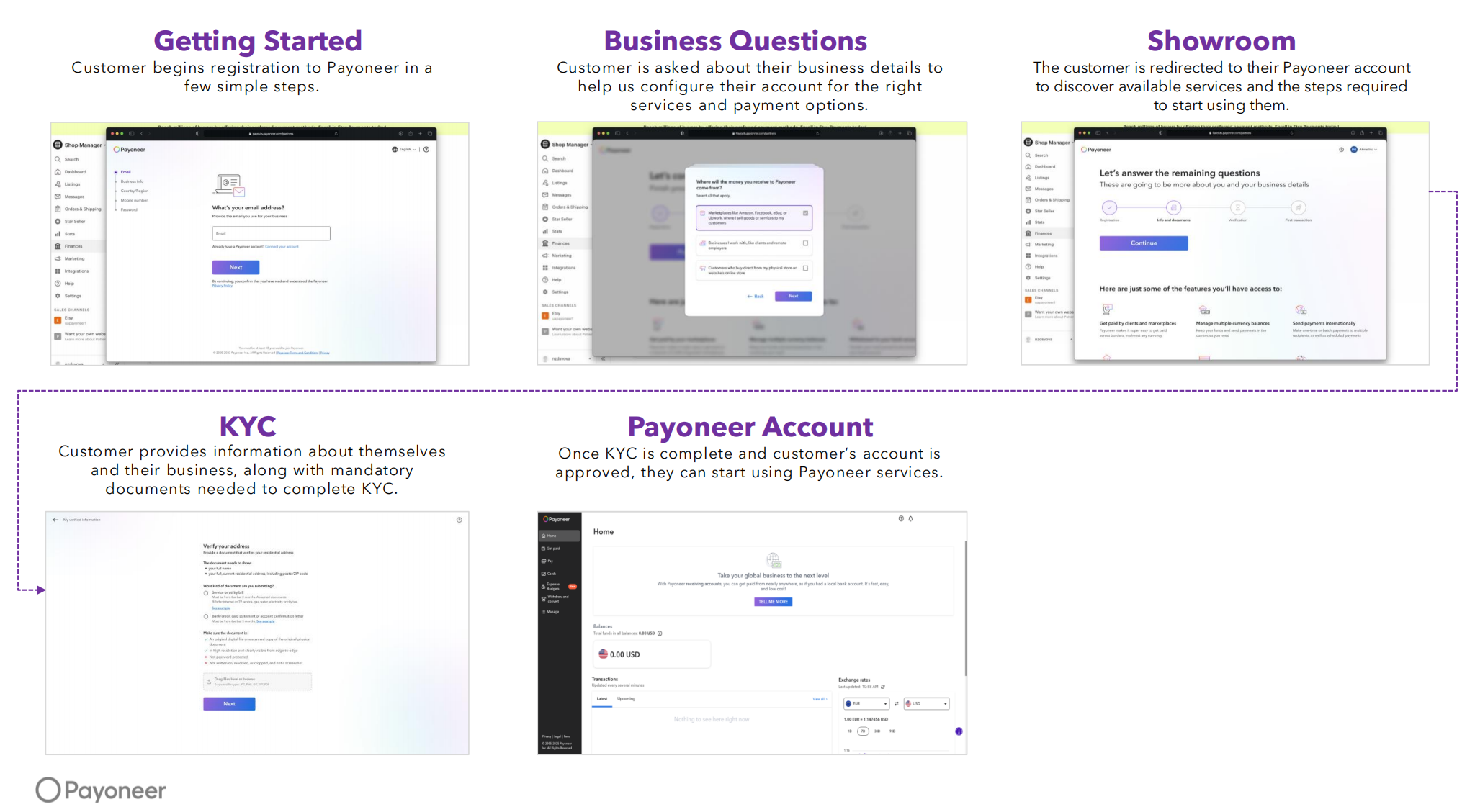
Payoneer will introduce a new KYC (Know Your Customer) registration flow for sellers in selected countries.
Affected Countries & Timeline
- China – expected by end of Q1 2026
- Hong Kong – expected by end of Q1 2026
- Australia – expected by end of Q1 2026
- Israel – expected April 2026
- India – expected by end of Q2 2026
The new registration flow is scheduled to launch on or around March 30, 2026. During the transition period, sellers in the affected countries may still see the existing registration flow until the new flow is fully available.
Once released, the updated flow will include enhanced KYC verification steps, primarily during Step 2 of the registration process where Customer provides business details and KYC information, including required documents. (New enhanced step)
Go to "My G2G" and click "Payment".
You may add only one Payoneer account per currency. Supported currencies and methods:
Payoneer Wallet: EUR, USD
Payoneer Bank Transfer: EUR, USD, CAD, CHF, CNY, DKK, AUD, THB, SEK, NOK, JPY, INR, GBP, KRW, VND
Payoneer Local Bank Transfer: EUR, USD, AUD, GBP, SGD
Ensure that your G2G and Payoneer accounts share the same first and last name. Then proceed to link your Payoneer account.
You will be redirected to the Payoneer login page.
If you do not have a Payoneer account, you can sign up during this step.
Upon successful connection, a confirmation page will appear.
You will be redirected back to the Add Payment Account page on G2G.
Fill in the account title, enter the SMS Token, and click Submit.To withdraw, select your linked Payoneer account and specify the withdrawal amount.
Double-check all information before confirming. Refer to the G2G Payment Schedule & Withdrawal Fee for timelines and fee details.
After submitting, you will receive a payment request number for tracking.
Payoneer Withdrawal Fee & Timeline
Fees for withdrawals to your bank depend on your Payoneer account usage.
Requests exceeding USD 1,000 may take 3–4 working days to process.
Additional withdrawal fees may apply when transferring funds to your local bank account.
You can view detailed pricing during sign-up or later via the “Pricing & Fees” section under “Help” in your Payoneer account.
Need Help?
For assistance, please visit the Payoneer Resource Center.